How do HR admin view or edit staff's HRMS data ?
Introduction:
HRMS is an indigenous application which helps the Organization to accumulate and maintain the Human Resource data. This document guides HR admin to view or edit staff's HRMS data.
Getting Started:
To access Human Resource Management System
Open an internet browser (Recommended to use Google Chrome)
Type https://my.amrita.edu/ and click enter
Login with your amrita email id and password.
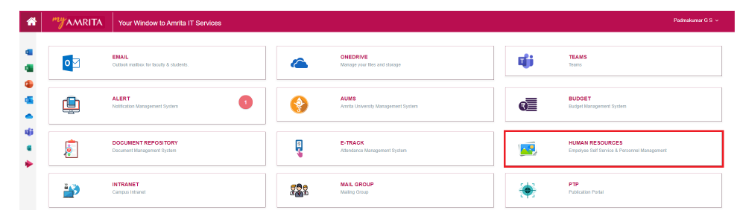
Click HUMAN RESOURCES.
To view status of the Staff data
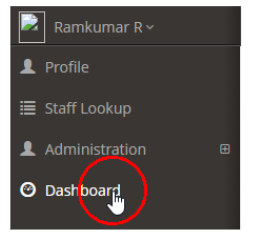
Click on Dashboard in the left menu. Dashboard page will be loaded.
You can use filter in the top of the page as required to view the desired result.

The FMS Report - Campus Wise displays provides the count of staffs / faculties who has updated their HRMS data campus wise.

FMS Staff Status table shows the staff wise status. Those in green color tick are filled pages and those in yellow cross are need to be filled by staffs.
Salary page and HR page needs are to be updated by Accounts and HR departments respectively.
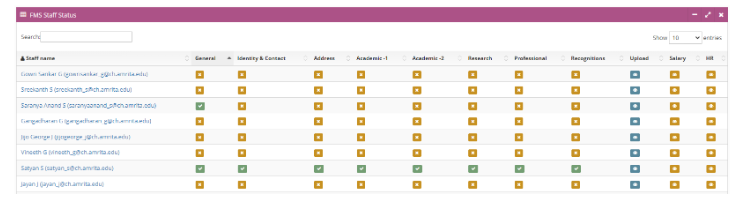
Click on the name of a staff name in the FMS Staff status table to open the General data page of that staff.
You can go through other pages except Upload, Salary, HR only if the staff has updated them.
HR admin can edit the updated pages of the staff if required.
Basically HR department can insist the staffs to fill / update their HRMS data once in a while which may help the HR department to keep the data up to date.